Decide what stays
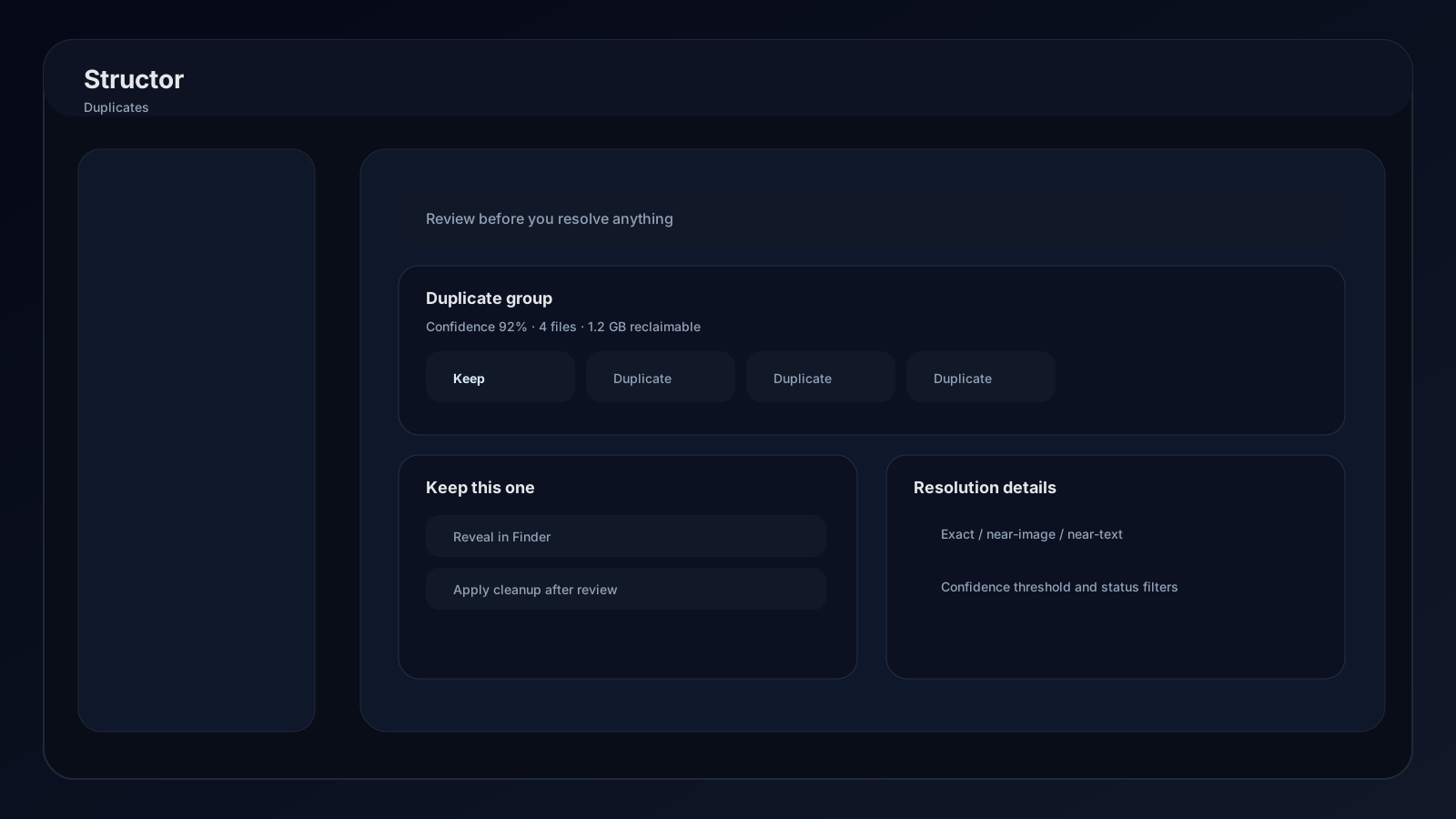
Structor groups likely duplicates but does not decide for you. Every destructive action begins by selecting one or more files to keep.
Unlock duplicate review
- 01
Enable Duplicate cleanup
Open a folder's Settings → AI helpers and turn on Duplicate cleanup. - 02
Prepare local models
MiniLM and SigLIP must show Ready under AI Model → Local search models. - 03
Let indexing finish
Wait for queued and active counts to settle, or use Refresh analysis after a major folder change.
Match types
| Type | What Structor compares | Best use |
|---|---|---|
| Exact | Content hash and identical bytes | True copies with different names or paths |
| Near-image | Visual embeddings and conservative image fingerprints | Resized, recompressed, or lightly edited images |
| Near-text | Semantic text embeddings | Documents with substantially similar meaning |
Filter the queue
Use Options to narrow:
- Folder, or all folders with Duplicate cleanup enabled.
- Group type: all, exact, near-image, or near-text.
- Status, with open groups shown by default.
- Minimum confidence, starting at 75%.
The queue header reports set count and total reclaimable bytes for visible groups.
Review a set
- 01
Open the set
Inspect match type, confidence, reclaimable size, status, and Structor's recommended keep file. - 02
Compare files
Pairs use a side-by-side comparison. Larger groups use a list. Image files receive previews when available. - 03
Choose what stays
Pairs keep one file. Larger groups can keep several, but at least one file must remain and at least one must be resolved. - 04
Verify outside Structor
Use Show files for the whole set or reveal an individual item before applying a resolution.
Resolution actions
Destructive
Delete rest
Keeps selected files and moves every unselected file in the set to system trash.
Manual review
Keeps selected files and sends the remaining set through Structor's manual-review resolution path.
Ignore
Marks the set ignored without deleting or relocating its files.
Show files
Opens the containing location and selects the set's files when supported by the operating system.
Refresh analysis
Refresh analysis asks each selected cleanup folder to refresh its index, then reloads groups after queued work completes. Use it after importing, deleting, renaming, or moving many files.
If no sets appear:
- Lower the confidence threshold.
- Switch status or type back to All.
- Confirm the intended folder is selected.
- Check folder index counts and errors.
- Wait for analysis to finish after enabling cleanup.