Choose where intelligence runs
The AI Model screen configures two independent layers: a provider model that categorizes files, and local search assets that index text and visual meaning.
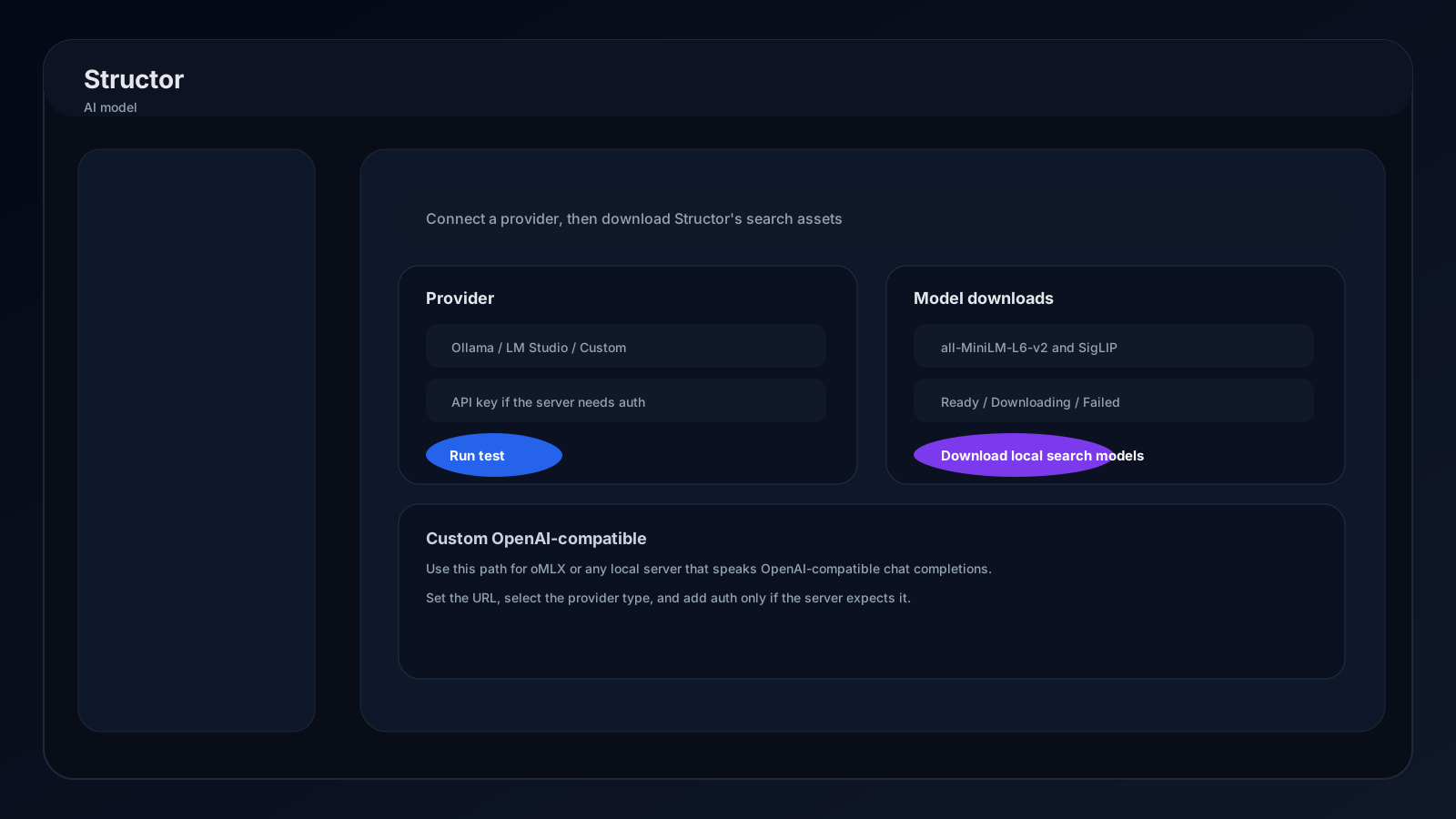
Understand the two layers
Organization provider
Local search assets
Structor AI
Choose Structor AI (Subscription) when you want the managed provider attached to your Structor plan.
- Sign in under Settings and confirm an active plan.
- Select Structor AI (Subscription).
- Press Test.
- Confirm the sample files receive structured category results.
No endpoint, model name, or API key is required in this mode.
Bring Your Own AI
BYO has two modes:
| Mode | Use it for |
|---|---|
| Local | Ollama, LM Studio, or a custom OpenAI-compatible service running on this machine |
| Custom | Hosted or local OpenAI-compatible, Anthropic-compatible, or proxy-normalized endpoints |
Settings save as you edit. Changing provider, endpoint, API key, or model cancels an in-progress provider test and triggers a fresh capability check.
Choose a provider quickly
| If you want… | Start with | What you manage |
|---|---|---|
| No local server or provider account | Structor AI | Sign-in and subscription |
| The simplest local runtime | Ollama | Ollama service and downloaded model |
| A desktop model browser and server controls | LM Studio | Loaded model, server, and optional token |
| Apple Silicon-native MLX serving | oMLX | Model directory, server, and optional token |
| An existing hosted or self-hosted API | Custom | Contract, base URL, model ID, and API key |
Ollama
Ollama is the shortest local setup on macOS, Windows, or Linux.
- 01
Install and start Ollama
Install Ollama using its official quickstart. Keep the desktop service running. - 02
Download a model
Choose a model with tool/function calling support and pull it locally:
ollama pull <model> - 03
Connect Structor
In AI Model, choose Bring Your Own AI → Local → Ollama. Keep the default endpoint:
http://localhost:11434/v1 - 04
Select and test
Refresh available models, select the downloaded model, and press Run test. The API key can remain empty; Ollama's local OpenAI-compatible endpoint ignores a dummy token.
See Ollama's OpenAI compatibility reference for supported endpoints and model behavior.
LM Studio
LM Studio provides a desktop model browser and OpenAI-compatible local server.
- 01
Download a capable model
Install LM Studio, open Discover, and download an instruct/chat model whose card lists tool or function calling. CLI users can run:
lms get <model> - 02
Load the model
Load it from Chat or Developer, or runlms load. Keep enough memory available for the selected quantization. - 03
Start the API server
Open Developer and switch on the server, or run:
lms server start --port 1234 - 04
Connect Structor
Choose Local → LM Studio and use:
http://localhost:1234/v1If LM Studio API authentication is enabled, enter its token in Structor's API key field.
- 05
Refresh and test
Refresh models, choose the loaded model, and run the provider test. If the list is empty, confirmhttp://localhost:1234/v1/modelsis reachable.
Reference: LM Studio local server, model downloads, and tool use.
oMLX
oMLX is an OpenAI-compatible inference server for Apple Silicon Macs. Current upstream requirements include macOS 15 or newer.
- 01
Install oMLX
Install the macOS app from oMLX releases, or use Homebrew:
brew tap jundot/omlx https://github.com/jundot/omlx brew install omlx - 02
Choose storage and download a model
The app welcome flow asks for a model directory and offers a model downloader. Choose an MLX-format instruct model with tool support. The admin dashboard can search Hugging Face and download models directly. - 03
Start the server
Start it from the oMLX menu-bar app, use its Homebrew service, or run:
omlx serve --model-dir ~/models - 04
Configure Structor
Choose Local → Custom local endpoint and enter:
http://localhost:8000/v1If oMLX started with
--api-key, put that same value in Structor's API key field. Otherwise leave it empty for localhost. - 05
Select the API model
Refresh models and choose the name or alias returned by oMLX's/v1/modelsendpoint. Run the provider test and confirm structured output support.
Reference: oMLX installation, models, API, and authentication.
Other custom providers
Choose Bring Your Own AI → Custom, then select the contract your endpoint exposes:
| Provider type | Expected contract |
|---|---|
| OpenAI-compatible | OpenAI-style model listing and chat completions with tools or structured JSON |
| Anthropic-compatible | Anthropic Messages API with tool use |
| Proxy-normalized | A proxy that presents one stable OpenAI-style structured tool contract |
Enter the complete base URL, model identifier, and bearer token when required. Localhost, 127.0.0.1, and [::1] OpenAI-compatible endpoints can operate without an API key.
Provider test
The test sends sample filenames through the selected model and expects category values. Status can progress through connection, capability probing, categorization, and completion.
- Ready: structured categories were returned.
- Warning: provider responded but Structor used a fallback or found limited capabilities.
- Error: endpoint, authentication, model name, or structured output failed.
When debugging, verify in this order: server running, endpoint correct, model visible, token accepted, model loaded, provider test successful.
Local search models
The bottom of AI Model manages:
| Asset | Purpose |
|---|---|
| all-MiniLM-L6-v2 and tokenizer | Text embeddings and semantic document similarity |
| SigLIP and tokenizer | Visual embeddings for images, video frames, and near-image groups |
Press Download once. Status moves through pending, downloading, ready, or failed. Progress includes downloaded and total bytes when available.