Keep this device authorized
The sidebar item named Settings opens Structor's Account screen. It combines authentication, license entitlement, device identity, connectivity grace, and desktop updates.
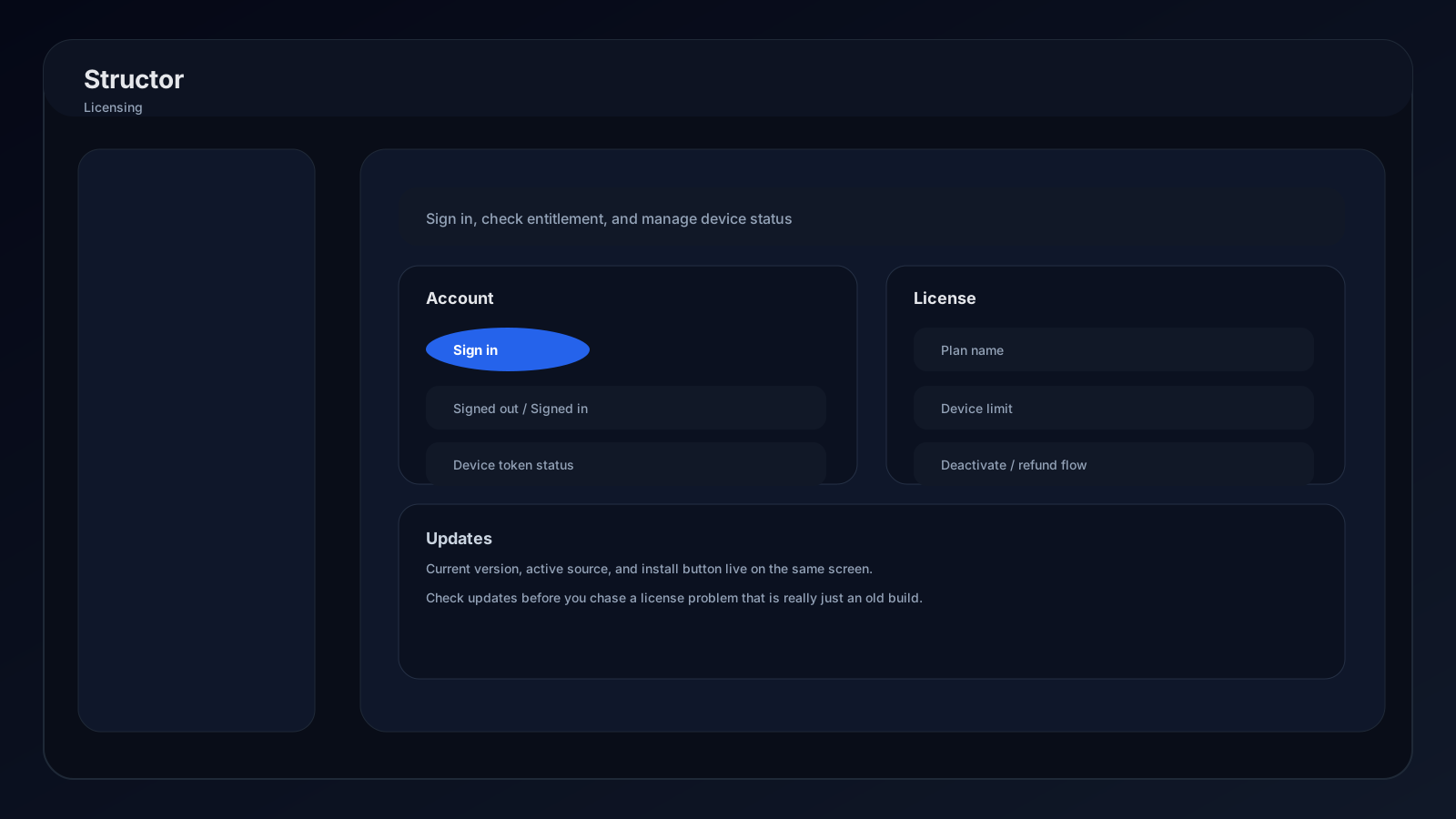
Sign in
- 01
Start authentication
Press Sign in. Structor opens the Seraro account flow in your browser and begins waiting for completion. - 02
Finish in the browser
Authenticate the account that owns the Structor plan. The browser returns through thestructor://desktop link. - 03
Confirm entitlement
Back in Structor, refresh if needed. The account card should show your identity, plan, and Licensed status.
Read account status
| Field | Meaning |
|---|---|
| Account session | Whether Structor has a current signed-in desktop session |
| Desktop token | Whether the app has a usable desktop authentication token |
| Plan | Product plan attached to this entitlement |
| License type | Subscription or perpetual license behavior |
| Permanent eligibility | Whether a perpetual grant remains permanently eligible |
| Next verification | When Structor should validate the device lease again |
| Expires | End of the current license period, when applicable |
| Offline until | Last date premium access may continue without successful online renewal |
| Device limit | Maximum machines allowed by the license |
| License ID | License assigned to this activation |
| Machine ID | Identifier for this activated device |
Sign out versus deactivate
Sign out
Deactivate device
Refund deactivation removes this device's license, session, and device key. A refund can remain pending until every active device completes the same step.
License requirements
Production builds require active Structor access for:
- Starting and restoring folder watchers.
- Manual folder organization.
- Scheduled organization.
- Managed Structor AI or non-local provider categorization where required.
Local provider configuration and downloaded search assets do not replace the Structor license required for folder watching and organization.
Desktop updates
The Updates panel shows current version, configured source, and latest updater state.
- 01
Check
Press Check for updates. Structor checks configured update sources and reports whether a newer signed build exists. - 02
Download
When an update is available, press Download & restart. Keep Structor open while the package downloads. - 03
Restart
Structor applies the package and relaunches. Confirm the Current version field changed after restart.
Menu-bar account view
Without opening the main window, the tray/menu-bar menu shows sign-in status, plan/access, license lifecycle, verification or expiry dates, offline deadline, organization statistics, and synced folders. It also supports Pause/Resume Sync, Show/Hide App, Sign out, and Quit.