Save space without losing the immediate way back
Image compression is an optional per-folder organization helper. Before Structor replaces a supported image with a smaller version, it copies the original into private application storage and records enough information to restore that organization change while the backup still exists.
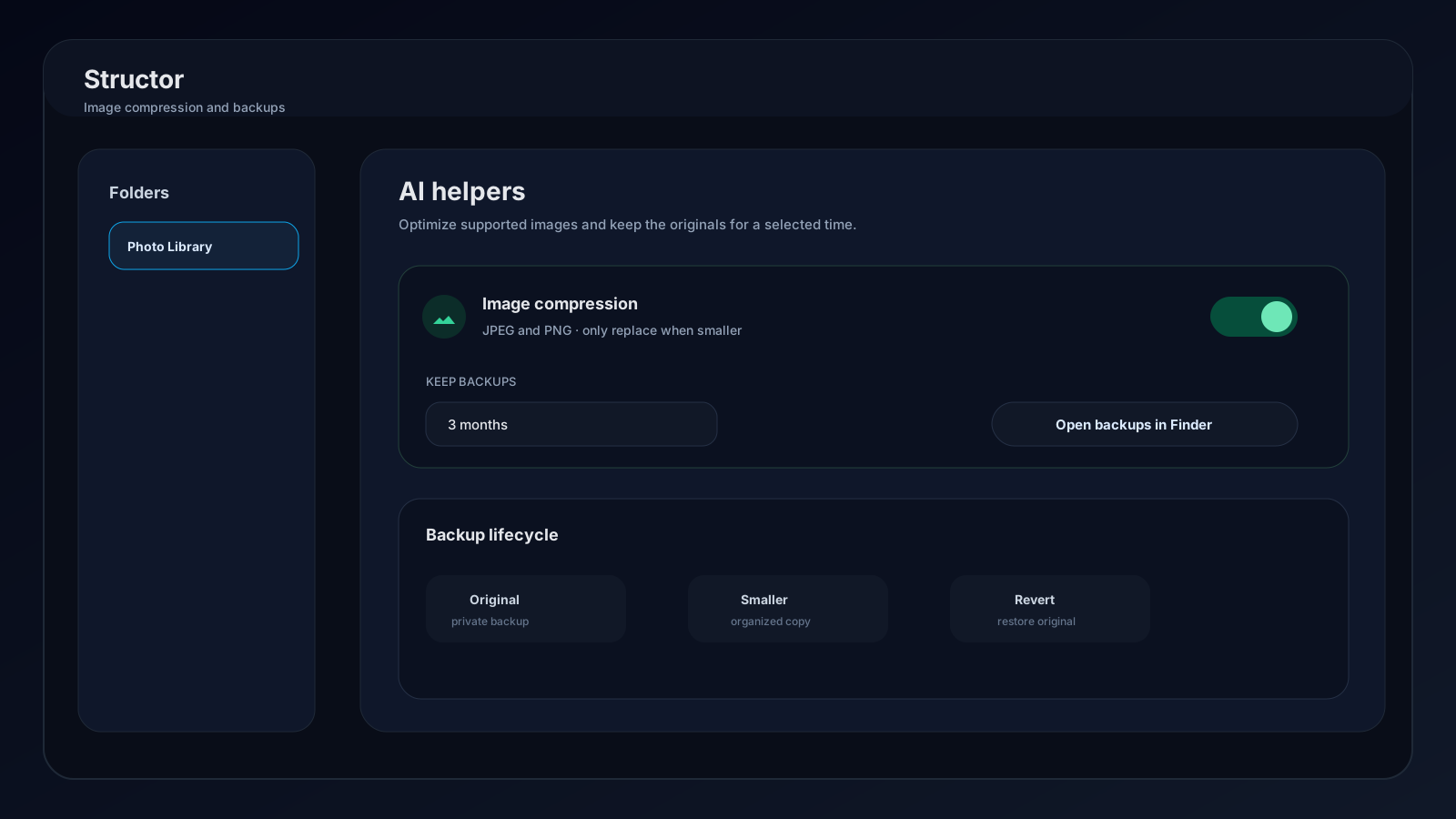
Turn it on for one folder
- 01
Open folder settings
Open Folders, expand the intended folder, select Settings, and expand AI helpers. - 02
Enable Image compression
Turn on Image compression. The switch affects future organization work for this folder; it does not immediately recompress the existing library. - 03
Choose Keep backups
Select 1 week, 2 weeks, 1 month, 2 months, 3 months, 6 months, or 1 year. The default is 3 months. - 04
Run organization
Use Organize now or wait for the next scheduled run. Structor applies optimization only while moving an eligible image as part of that organization run.
What happens to an image
| Stage | Structor behavior |
|---|---|
| Eligibility | Only .jpg, .jpeg, and .png files enter the compression path |
| Trial output | JPEG is re-encoded at quality 82; PNG uses the packaged pngquant helper |
| Size check | If the candidate is not smaller than the original, Structor discards it and leaves the image unchanged |
| Backup | Before replacement, Structor copies the original into its managed backup directory |
| Replacement | The smaller file replaces the organized copy while keeping its original extension |
| Metadata | Structor preserves the original modification time and records original size, compressed size, format, backup path, and sync history |
PNG compression fails open: if pngquant is unavailable or cannot process a file, Structor leaves that PNG unchanged and continues the organization flow.
Where originals are stored
Select Open backups in Finder in the Image compression panel. Despite the macOS-oriented label, the backend asks the operating system's file manager to reveal the managed directory.
The default directory is the current user's configuration location followed by:
Structor/.image-backups
Typical locations are:
| Platform | Typical path |
|---|---|
| macOS | ~/Library/Application Support/Structor/.image-backups |
| Windows | %AppData%\Structor\.image-backups |
Backup filenames contain the Structor folder ID, sync ID, creation timestamp, a short unique suffix, and the original extension. They are not intended to mirror your photo-library folder names.
Retention and cleanup
Retention is configured per folder and defaults to 90 days. At the start of organization work, Structor removes backup files for that folder whose backup timestamp is older than the selected window. Opening the managed backup location can also run backup maintenance.
Changing retention affects cleanup of stored originals; it does not change the compressed file in your organized folder. A longer value consumes more local disk space. A shorter value reduces the period during which an optimized image can be restored through organization history.
Revert an optimized image
Use the same controls as any organization revert:
- Activity → Revert restores one recorded sync.
- Activity → Revert all restores every visible reversible sync.
- Folder actions → Revert latest sync targets the newest recorded batch.
For an optimized image, Structor copies the original bytes from managed backup storage back to the old path, restores the recorded modification time, and removes the organized compressed copy. A normal move-only file is simply moved back.
Recommended workflow for important photos
- Start with a small folder containing copies, not the only originals.
- Enable Image compression and leave retention at 3 months for the first run.
- Run Organize now and compare file size and visible quality.
- Open managed backups and confirm an original exists.
- Revert the sync and confirm the original returns to its previous path.
- Only then enable the feature for a larger library.
What disabling does
Turning Image compression off prevents future organization moves from creating optimized replacements. It does not automatically expand compressed images, delete their originals, or change previous organization history. Use Revert while the relevant backup is still retained when you need the original restored.