Find the blocked layer
Most failures belong to one of four layers: account access, organization provider, local search assets, or folder indexing. Start with the screen that owns that layer.
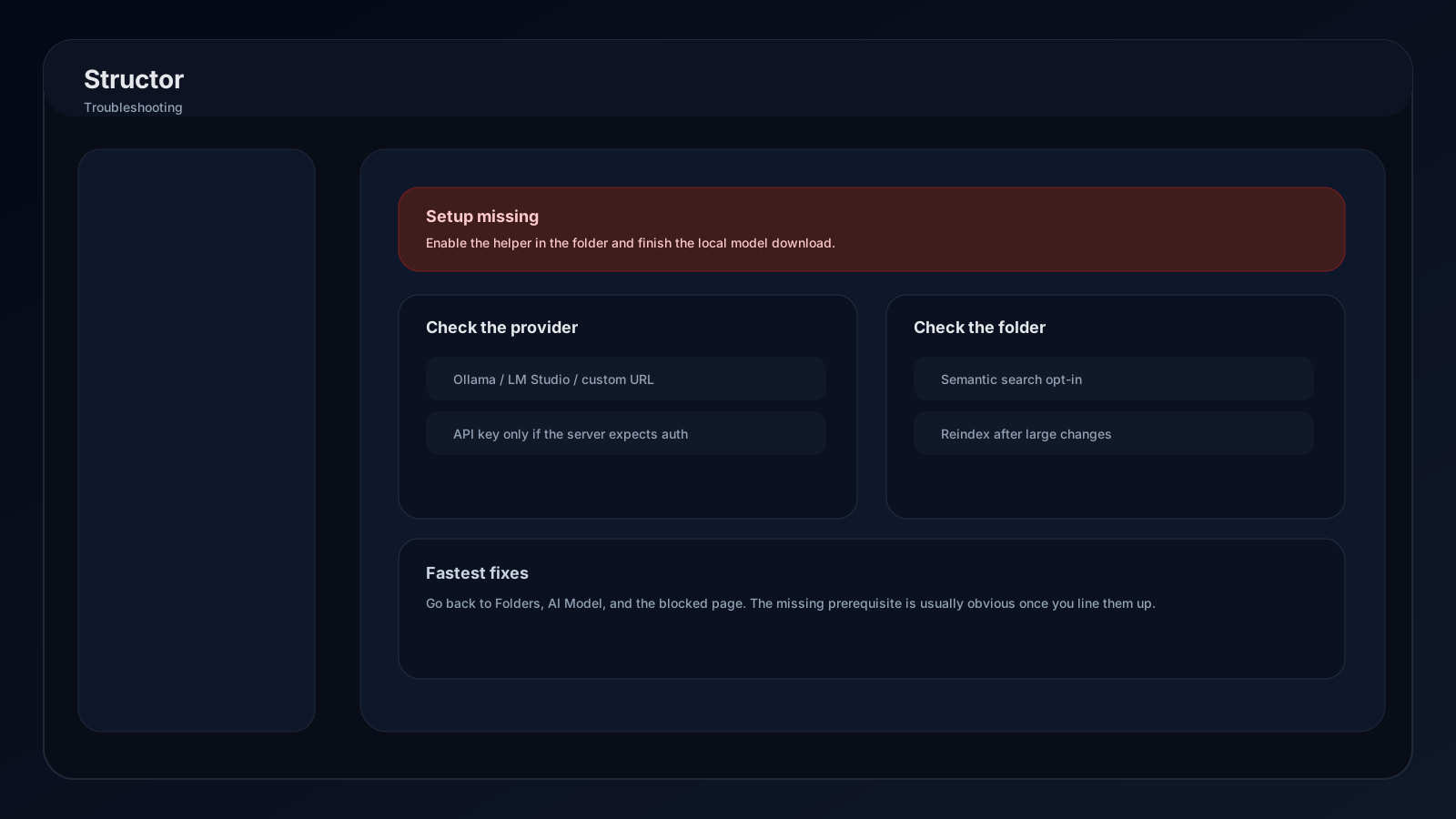
Endpoint reference
| Service | Structor mode | Default endpoint | API key |
|---|---|---|---|
| Ollama | Local → Ollama | http://localhost:11434/v1 | Empty or ignored dummy token |
| LM Studio | Local → LM Studio | http://localhost:1234/v1 | Empty unless LM Studio auth is enabled |
| oMLX | Local → Custom local endpoint | http://localhost:8000/v1 | Required only when oMLX auth is enabled |
Provider unavailable or model list empty
- 01
Confirm the server
Start Ollama, LM Studio, oMLX, or the selected custom service. A downloaded model alone is not enough; the API server must be running. - 02
Check the base URL
Use the full/v1base URL. Confirm host and port match the server, especially after changing LM Studio or oMLX defaults. - 03
Check model visibility
Verify the provider's/v1/modelsendpoint returns the intended model. Load it first when the server does not support automatic loading. - 04
Refresh Structor
Press Refresh available models, select the returned name, and run the provider test.
Provider connects but test fails
- Choose an instruct/chat model rather than an embedding-only or base model.
- Prefer a model whose runtime advertises tool/function calling.
- Confirm model chat template accepts tools.
- Check API token and provider type.
- If tools fail but structured JSON works, let Structor's capability probe finish and inspect its warning.
- Try a smaller model if the server unloads or times out under memory pressure.
Search or Duplicates is locked
| Overlay message | Fix |
|---|---|
| Turn on Semantic search | Enable it in the folder's Settings → AI helpers |
| Turn on Duplicate cleanup | Enable it in the folder's Settings → AI helpers |
| Load local models | Open AI Model, download assets, and wait for both groups to become Ready |
| Setup needed | Complete both the folder opt-in and model download |
Return after indexing begins. Pages unlock automatically when prerequisites are satisfied.
Search models are pending, stuck, or failed
- Open AI Model → Local search models.
- Press Refresh to reload recorded asset state.
- If still pending, press Download.
- Keep Structor open while progress advances.
- If failed, read the displayed asset error, confirm disk space and network access, then retry.
MiniLM and its tokenizer count as one ready group; SigLIP and its tokenizer count as the second.
Indexing is stale or failing
- Check Indexed, Queued, Active, and Failed counts in the folder's AI helpers.
- Leave Structor running while queued work completes.
- Read Last error when Failed is non-zero.
- Press Reindex after large external edits or model recovery.
- Confirm the path is not under Skipped folders.
- Confirm Subfolders is on when expected files are nested.
Folder does not move files
Check in this order:
- Account screen shows active licensed access.
- Folder Sync switch shows Connected.
- Global tray control is not paused.
- Folder Organization is on.
- For automatic runs, Sync Interval is not Never.
- Files are inside the tracked root or enabled subfolders.
- Files are not inside skipped paths.
- Provider test succeeds with structured categories.
- Use Organize now and watch the progress detail for a direct result.
Organization structure looks wrong
- Basic creates broad type categories.
- Detailed adds purpose.
- Advanced adds deeper specificity.
- Lower depth for fewer folders and easier navigation.
- Review Skipped folders and Subfolders scope.
- Revert the affected sync before trying a different depth on important files.
No duplicate sets appear
- Confirm Duplicate cleanup is enabled for the selected folder.
- Wait until indexing is no longer queued or active.
- Press Refresh analysis.
- Set folder, type, and status filters to All.
- Lower minimum confidence.
- Exact duplicates still require the folder to be included in cleanup analysis.
Nothing can be reverted
Only runs that moved files create reversible sync entries. History is retained for recent activity. If Activity shows no syncs, there is no recorded batch available to reverse.
For an optimized JPEG or PNG, revert also needs its original file in Structor's managed image-backup folder. If that backup expired or was removed manually, Structor cannot reconstruct the original image bytes. See Image optimization and backups.
Image compression or backup problems
- Confirm Image compression is enabled for the affected folder.
- Only
.jpg,.jpeg, and.pngfiles are candidates. - Structor skips an image when the optimized output is not smaller.
- PNG optimization is skipped when the packaged
pngquanthelper is unavailable or fails. - Use Open backups in Finder instead of guessing the application-data path.
- Check the folder's Keep backups value before relying on a later revert.
- Do not rename or delete files inside the managed backup folder while a revert may still be needed.
Account or license remains empty
- Complete browser authentication and return through the Structor desktop link.
- Focus Structor or press Refresh account.
- Confirm the same account owns the plan.
- Check device-limit state and deactivate an unused device when necessary.
- If offline grace is shown, reconnect before its deadline.
- Use Sign out for session problems; use Deactivate only to release this machine's activation.
Update check fails
- Confirm internet access.
- Retry Check for updates from Account.
- Read the update message and active source.
- Keep Structor open during Download & restart.
- If installation does not relaunch, reopen Structor and compare Current version before retrying.