Start with one folder
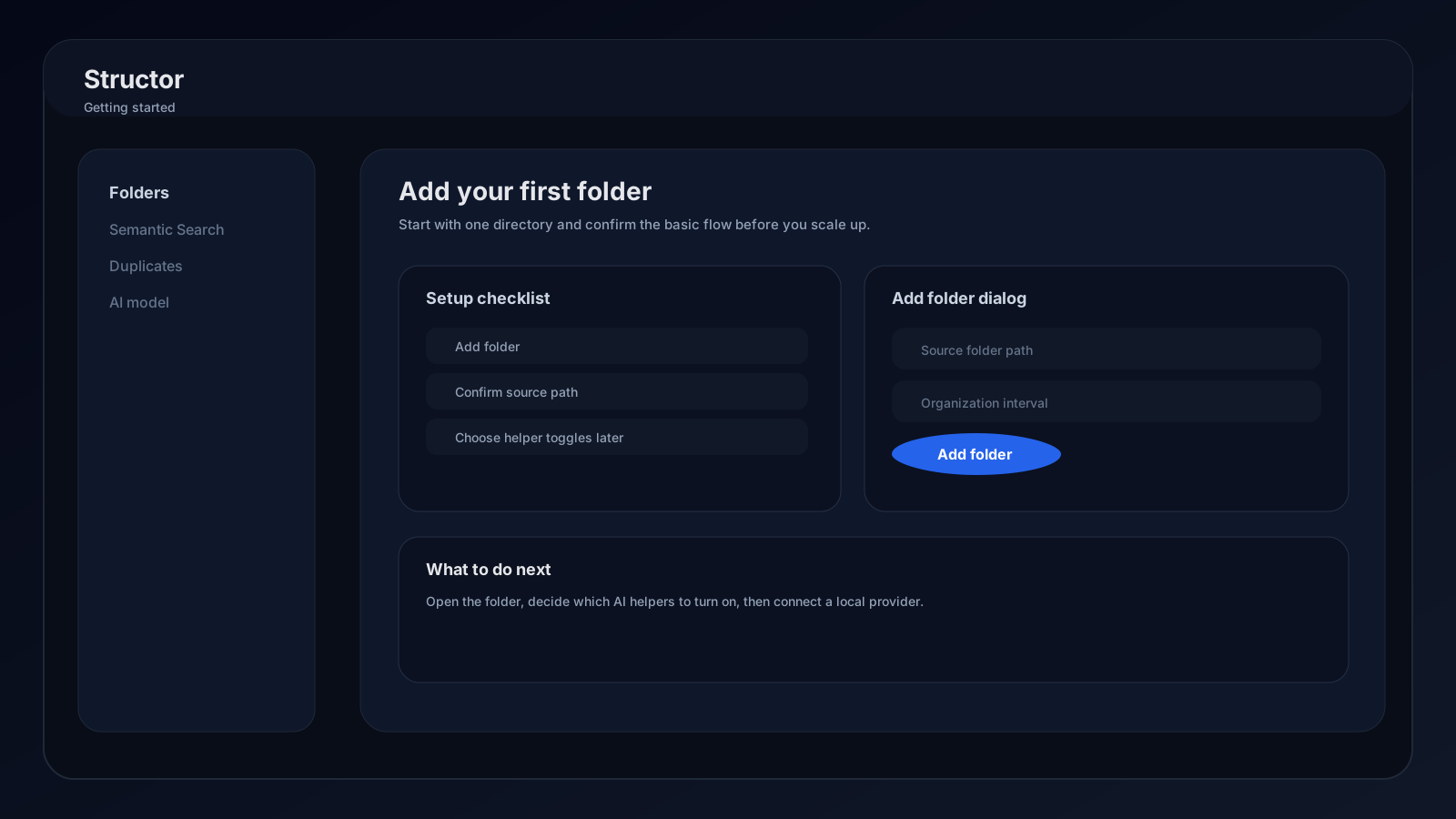
Structor may seed Downloads and Desktop as paused folders on first launch. You can use one of them or add another folder, then configure access, AI, and sync before files move.
Install and open Structor
Structor is currently distributed for macOS and Windows. Install the build provided for your operating system and processor, then launch it from Applications or the Start menu.
On first use, the operating system may ask for permission to open, inspect, or modify a selected folder. Grant access only to folders you intend Structor to manage. Local providers also need permission to accept a loopback connection from Structor; hosted providers require normal internet access.
Before files move
Active access
Working AI model
First-run flow
- 01
Sign in and verify access
Open Settings in the sidebar. Select Sign in, finish authentication in your browser, and return to Structor. Confirm the account card shows Licensed rather than Access required. - 02
Choose the organization provider
Open AI Model. Choose Structor AI (Subscription) or Bring Your Own AI. For BYO, connect a local or custom provider, select its model, and run the provider test. - 03
Choose a folder
Open Folders. Select a seeded paused folder, or press Add Folder and choose a directory. Structor adds it to the list without moving anything. - 04
Enable Sync
Turn on the folder's Sync switch and confirm. On first setup, Structor asks whether subfolders should be excluded and then asks for Low, Medium, or High organization depth. - 05
Run and inspect
Open the folder action menu and choose Organize now. Follow scanning, organizing, moved-file count, and completion progress. Expand the folder and inspect Explore before changing the schedule. - 06
Set the schedule
Open Settings inside the expanded folder. Choose an automatic Sync Interval, or choose Never to keep organization manual-only.
Choosing organization depth
| First-run choice | Folder setting | Result |
|---|---|---|
| Low | Basic | Type-based paths, such as AI/Documents/invoice.pdf |
| Medium | Detailed | Type and purpose, such as AI/Documents/Invoices/invoice.pdf |
| High | Advanced | Deeper categories, such as AI/Documents/Invoices/2026/invoice.pdf |
Menu-bar controls
Structor remains useful when its main window is hidden. Its system tray or menu-bar menu exposes:
- Current sign-in and license state.
- Files moved, folders organized, and last organization time.
- Names of synced folders.
- Pause Sync or Resume Sync for all active watchers.
- Show App or Hide App.
- Sign out and Quit.
Add search later
Organization only needs the selected provider model. Semantic search and duplicate cleanup need separate local search assets. Complete the first organization run first, then follow AI models and local providers.