Put every file in its place
Structor watches selected folders, categorizes files with your chosen AI provider, and builds a managed AI tree you can inspect and reverse. Local search models add meaning-based search, visual discovery, and duplicate review.
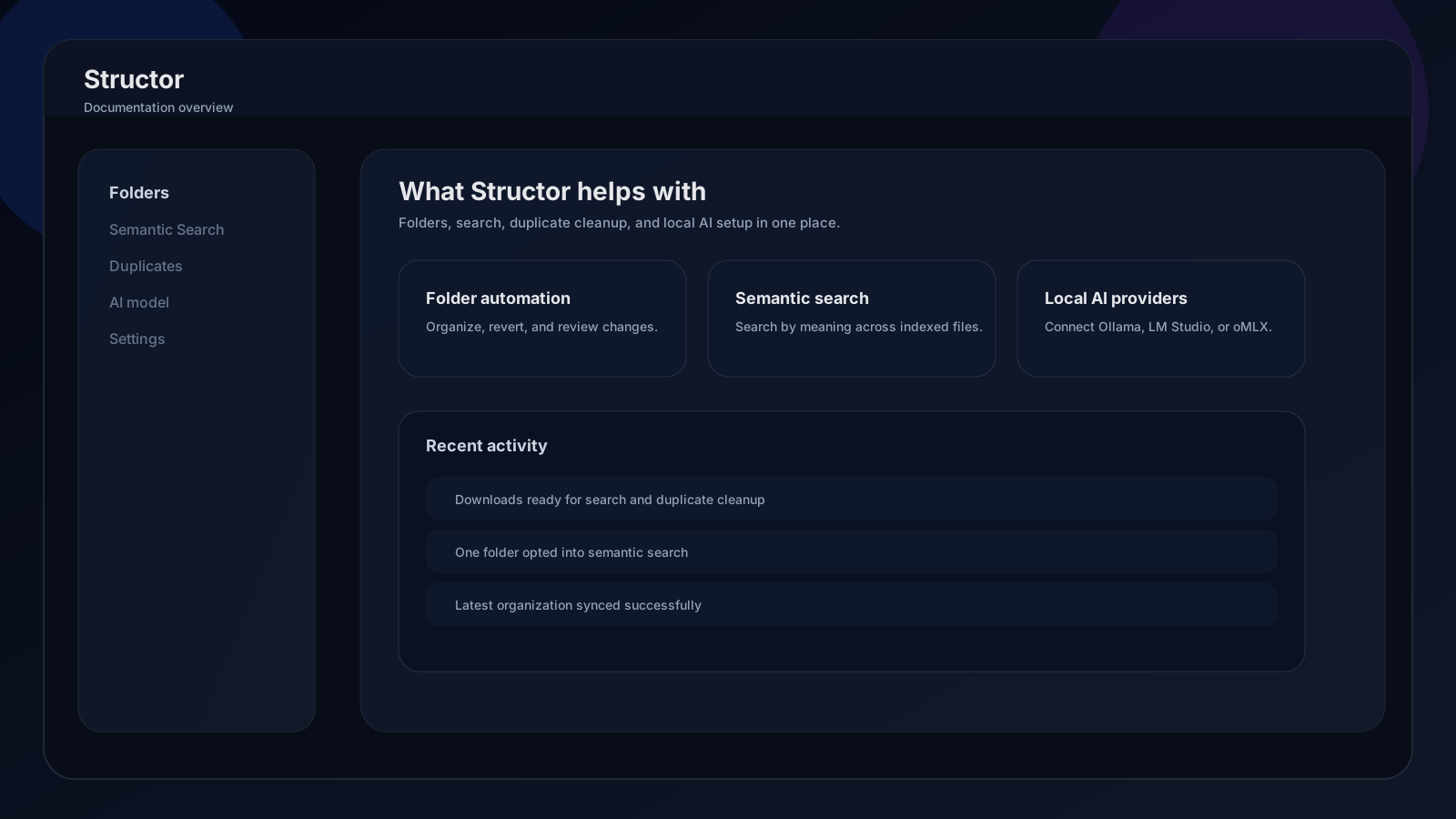
What Structor manages
Core
Folder organization
Watch a folder, choose organization depth, and let Structor categorize eligible files into its
AI tree on demand or on a schedule.Semantic search
Search text, images, PDFs, and video frames by meaning across folders that explicitly opt in.
Duplicate review
Compare exact, visually similar, and semantically similar files before choosing what stays.
Image optimization
Compress supported images during organization while retaining originals in managed, time-limited backup storage.
Three systems, three jobs
| System | What it does | Where to configure it |
|---|---|---|
| Organization provider | Produces structured file categories | AI Model |
| Local search assets | Index text and visual meaning | AI Model → Local search models |
| Account and license | Authorizes watching and organization on this device | Settings → Account |
App map
Folders
Add folders, pause or start sync, organize now, explore results, tune settings, and revert activity.
Semantic Search
Run natural-language searches with folder, file-type, and relevance controls.
Duplicates
Review duplicate sets, choose keep files, ignore a set, or move remaining copies to trash.
AI Model
Select Structor AI or connect Ollama, LM Studio, oMLX, or another compatible endpoint.
Image backups
Understand JPEG and PNG optimization, retention, backup storage, and what a revert can restore.
Settings / Account
Manage sign-in, entitlement, device activation, offline grace, and desktop updates.
Troubleshooting
Trace blocked features, provider failures, stale indexes, organization issues, and license state.
Recommended setup
- 01
Connect your account
Open Settings, sign in, and confirm this device shows Licensed. Folder watching and organization require active access. - 02
Choose an AI source
Open AI Model. Select Structor AI or configure a local/custom provider, select a model, and run the provider test. - 03
Start one folder
Open Folders, add or select a folder, enable Sync, choose exclusions and organization depth, then run Organize now. - 04
Enable search helpers
Download local search models, then enable Semantic search or Duplicate cleanup inside the folder's AI helpers.